Skip to product information
1 of 5

Raspberry Pi Pico with Headers and Micro USB Cable

SKU: KUFQTVMH2J
The Raspberry Pi Pico is a powerful and flexible microcontroller board and one of the newest additions to the Raspberry Pi family of development boards. It is built around a custom-designed silicon chip developed entirely by the Raspberry Pi Foundation, making it a unique and efficient solution for embedded systems and electronics projects. The Pico board is designed to help...
Regular price Rs. 559.00
Regular price Rs. 669.00 Sale price Rs. 559.00
Save Rs. 110
Sold out
Tax included. Shipping calculated at checkout.

Shipping & Returns

Orders placed before 3 PM IST will be shipped on the same day (excluding Sundays and Public holidays) through our shipping partners. In rare cases, the pickup may get delayed during Public holidays / Bandh / Environmental disturbances.

Specifications

Specifications:

Chip: RP2040
Processor: Dual-core Arm Cortex-M0+
Flash Memory: 2 MB onboard flash
SRAM: 264 KB
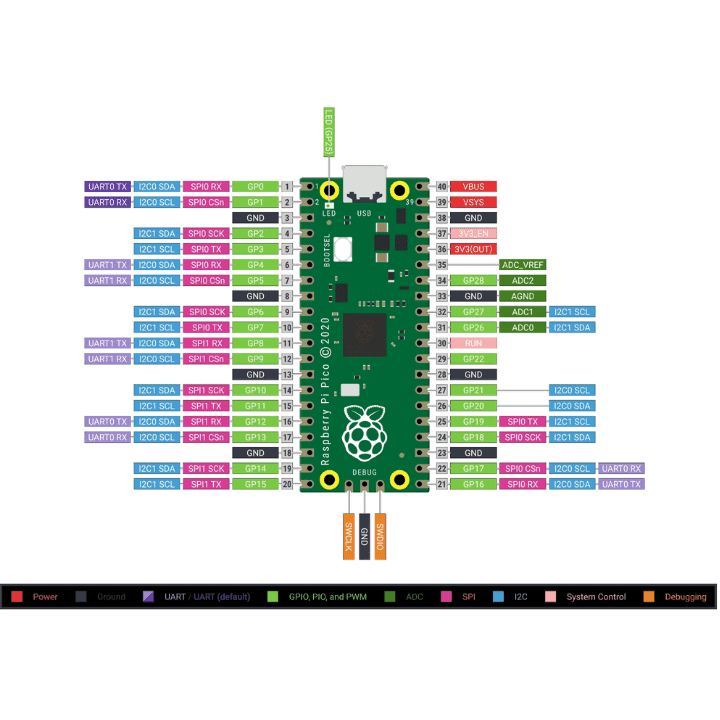
GPIO Pins: 26 multifunction GPIO pins
Dimensions: 5 × 2 × 1 cm
Weight: 5 grams

FAQ

1. Can I use Raspberry Pi Pico without soldering?

Yes the Raspberry Pi Pico can be used without soldering by directly connecting jumper wires to the exposed pins

2. What is Raspberry Pi Pico used for?

The Raspberry Pi Pico can be used in a variety of projects, including Internet of Things (IoT), Adafruit Neopixel projects, data logging, small to medium-scale robotics, projects requiring camera interfacing, analogue sensing (using environmental sensors), and more.

3. How many LEDs can a Raspberry Pi Pico power?

A single Raspberry Pi Pico can power up to 26 leds.

4. What is a Raspberry Pi Pico?

The Raspberry Pi Pico is the newest member of the Raspberry Pi family of microcontrollers. It is a new silicon-based flexible microcontroller board designed entirely by Raspberry Pi. The Raspberry Pi Pico board includes all of the features you need to get started, whether you use our C/C++ SDK or the official MicroPython port. The Raspberry Pi Pico is a low-cost, high-performance microcontroller board with a variety of flexible digital interfaces.

5. How do I connect my Pico to my breadboard Raspberry Pi?

Place your Raspberry Pi Pico on a breadboard. Place it so that the ravine in the middle separates the two headers. Connect your micro USB cable to the port on the board's left side.

View full product details

The Raspberry Pi Pico is a powerful and flexible microcontroller board and one of the newest additions to the Raspberry Pi family of development boards. It is built around a custom-designed silicon chip developed entirely by the Raspberry Pi Foundation, making it a unique and efficient solution for embedded systems and electronics projects.

The Pico board is designed to help users get started quickly with development, whether they choose to use the official C/C++ SDK or the MicroPython programming environment. It combines low cost, high performance, and flexible digital interfaces, making it suitable for both beginners and experienced developers.

At the heart of the Raspberry Pi Pico is the RP2040 microcontroller, which features a dual-core Arm Cortex-M0+ processor with a flexible clock speed of up to 133 MHz. The board also includes 2 MB of onboard flash memory for program storage and 264 KB of SRAM for efficient data processing.

To build projects with the Pico, developers often use additional components such as breadboards, power supplies, push buttons, jumper wires, and display modules, which make prototyping easier and more flexible.

The board is designed with castellated edges, allowing it to be soldered directly onto custom carrier boards for embedded applications. It also provides a very user-friendly programming method using drag-and-drop programming over USB mass storage, making development quick and simple.

Getting Started with MicroPython on Raspberry Pi Pico

Programming the Raspberry Pi Pico with MicroPython is straightforward thanks to its built-in UF2 bootloader and drag-and-drop functionality.

Follow these steps to install MicroPython on your Pico:

  1. Download the MicroPython UF2 firmware file.

  2. Press and hold the BOOTSEL button on the Pico while connecting it to your computer via USB.

  3. Release the BOOTSEL button once the board is connected.

  4. The Pico will appear as a mass storage device named “RPI-RP2.”

  5. Drag and drop the MicroPython UF2 file onto the RPI-RP2 drive.

  6. The Pico will automatically reboot and start running MicroPython.

After installation, you can access the REPL (Read-Eval-Print Loop) and interact with the Pico using USB serial communication.

Blinking an LED on Raspberry Pi Pico

Blinking an LED is usually the first program written when testing a new microcontroller. The Raspberry Pi Pico includes a built-in LED connected to GPIO pin 25, making it easy to test your first program.

Follow these steps to run the LED blink example:

  1. Download the Blink UF2 file.

  2. Press and hold the BOOTSEL button while connecting the Pico to your computer using USB.

  3. The board will appear as a mass storage device called RPI-RP2.

  4. Drag and drop the Blink UF2 file onto the RPI-RP2 drive.

Once the file is copied, the Pico will restart and the onboard LED will begin blinking, confirming that the program has been successfully uploaded.